



New Online and Mobile Banking
Managing your finances is easier than ever
Your digital banking experience got a major upgrade, with intuitive finance management.
What You Need To Know
Most of your account details are available and ready to use including transaction history, bill pay payee information, scheduled payments and internal transfers, as well as eStatement settings.
Important
- Your Alerts settings do not transfer. These need to be set up within the new system.
- Card controls you have set up via “Cards” within our Mobile Banking app do not transfer. Please set up card controls in our new Mobile Banking app.
- Recurring internal transfers you have set do carry over. If you want to edit, please set up the transfer and delete the old one.
- Your external transfers and history does not transfer. Please set these up in the new system.
- Business ACH and wire transaction approvals have enhanced security with new virtual token authentication.
First Time Login
Login using your existing User ID and Password. If your user ID meets the requirements, you will not have to create a new one. Otherwise, you may be prompted to create a new User ID and Password Upon your first login you will have the option to receive a text, email, or phone call with a one-time passcode to verify your identity. Simply enter this passcode into the system and submit to securely login.
Key first time login reminders.
- If you utilize biometrics to access digital banking, be sure you know your User ID and Password.
- If you are unsure of your User ID, please contact us.
- If you are unsure of your Password, you can reset it by selecting “Forgot Password” from the Online Banking login screen and following the on-screen prompts.
Questions? Call us at 512-218-5102 or Stop by any of our locations.
{{ online-banking }}
Frequently Asked Questions
Why is Online Banking changing?
Our new Online Banking offers seamless banking solutions whether you are at home or on the go.
Will this affect my account details?
Most of your account details are ready for you. This includes transaction history, bill pay payee information, scheduled payments and internal transfers, as well as eStatement settings.
Mobile push alerts, mobile Card controls, and external transfers do not transfer to the new system. These settings need to be set up again.
Will this upgrade affect the Mobile Banking app?
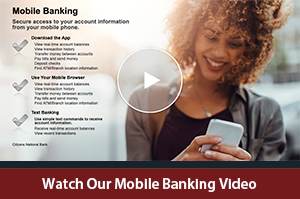
There is a NEW Mobile Banking app. You can access the new app in two ways: Through our Current Mobile Banking app - Open our current Mobile Banking app and you will be redirected to download the new Mobile Banking app. Once downloaded, you can log in with your existing User ID and Password. Or, Direct Download - Search for “cnbanktexas” within your device’s app store and download the new app. Then log in with your existing User ID and Password.
Once the new app (business) has been downloaded, please delete the old app.
Will this affect the login process?
You can login using your existing User ID and Password, as long as your user ID meets the requirements. Otherwise, you may be prompted to create a new User ID and Password. Upon your first login you will have the option to select a text or phone call with a one-time passcode to verify your identity. Simply enter this passcode into the system and submit to securely log in.
What if I use biometrics to log in?
If you utilize biometrics to access your digital banking, you will need to be sure you know your User ID and Password. You will be required to enter these within the new system the first time you log in.
After you have logged in, you can reestablish your biometrics for future logins.
What if I don’t know my Username or Password?
If you are unsure of your User ID, please contact us at 512-218-5102 for assistance.
If you are unsure of your Password, you can reset it by selecting “Forgot Password” from the Online Banking login screen and following the on-screen prompts.
What action items should I take?
You will need to reestablish any mobile push alerts, mobile Card controls, and external transfers had set up in the previous system. Please note, while your internal transfers will be available within the new system if you would like to make edits you will need to set up the transfer again and delete the old one.